How to Manage Orders, Payments and Refunds
Every order placed on your store appears in Orders. Customers are told each time you change an order’s status.
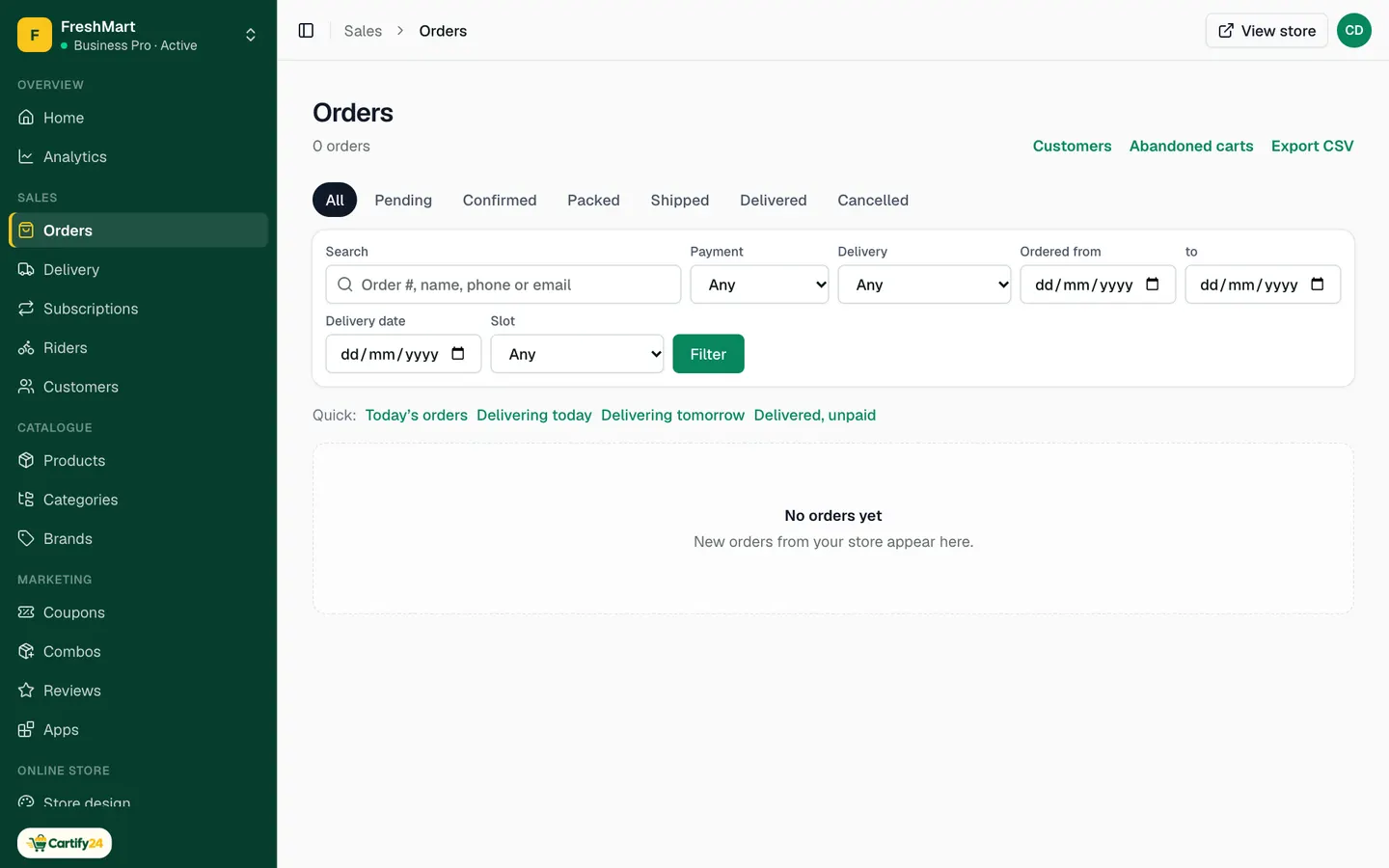
1Find an order
Orders has a tab for each status (Pending, Confirmed, Packed, Shipped, Delivered, Cancelled), a search by order number, name, phone or email, and filters for payment, delivery method, dates and delivery slot. Quick links show today’s orders, orders delivering today or tomorrow, and delivered orders not yet paid.
2Move an order along
- 1Open the order. You see the items, the customer, the delivery address and the delivery slot or date.
- 2Change Order status as you go: pending → confirmed → packed → shipped → delivered.
- 3The customer gets an update each time, by email, and by SMS or WhatsApp when those apps are on.
3Payments and refunds
- 1Online payments are marked Paid automatically. For cash on delivery, click Mark cash as received when you collect the money.
- 2To refund an online payment, use Refund on the order: enter the amount (all or part) and the reason, which the customer sees. A note for your team is optional.
- 3Refunds go back through Razorpay to the customer’s account.
4Cancel an order
Set the status to Cancelled. The stock goes back (including products inside combos), and any coupon or loyalty points used are returned.
5Weigh items sold by weight
- 1With the Sold by Weight app on, tick Sold by weight on products like meat, fish and loose vegetables, with sizes such as 500 g and 1 kg.
- 2Open the order while packing. Under Weigh items, enter what each item weighs in grams; the new price shows as you type.
- 3Click Save weights. If it weighs less, a cash order’s total comes down and a paid order is refunded the difference. Customers never pay more than the price they saw.
6Returns and exchanges
- 1With the Returns & Exchanges app on, customers ask from their order page within the days you set after delivery: a return for a refund, or another size at the same price.
- 2Open Returns (or the order) to approve or reject the request, with a message such as how to send the items back.
- 3When the items are back, click Items received: they go back into stock. Then Complete refunds the returned items and takes exchange sizes from stock for you to send.
7Bills, invoices and exports
- 1Print bill on an order prints a simple bill. With the GST Invoices app, Create invoice makes a tax invoice.
- 2Export CSV on the Orders page downloads the orders shown, for Excel or your accountant.
Questions
- Am I told about new orders?
- Yes, by email for every new order, and on WhatsApp too when the WhatsApp app is on with your alert number.
- Can customers cancel their own orders?
- Only if you allow it in Settings → Taking orders, and only before the order is packed.
- Can customers return items after delivery?
- Yes, with the Returns & Exchanges app, for the number of days you choose. You handle each request in Returns.
Learn more
Ready to try it on your own store?
Start free trial