How to Organise Products into Categories
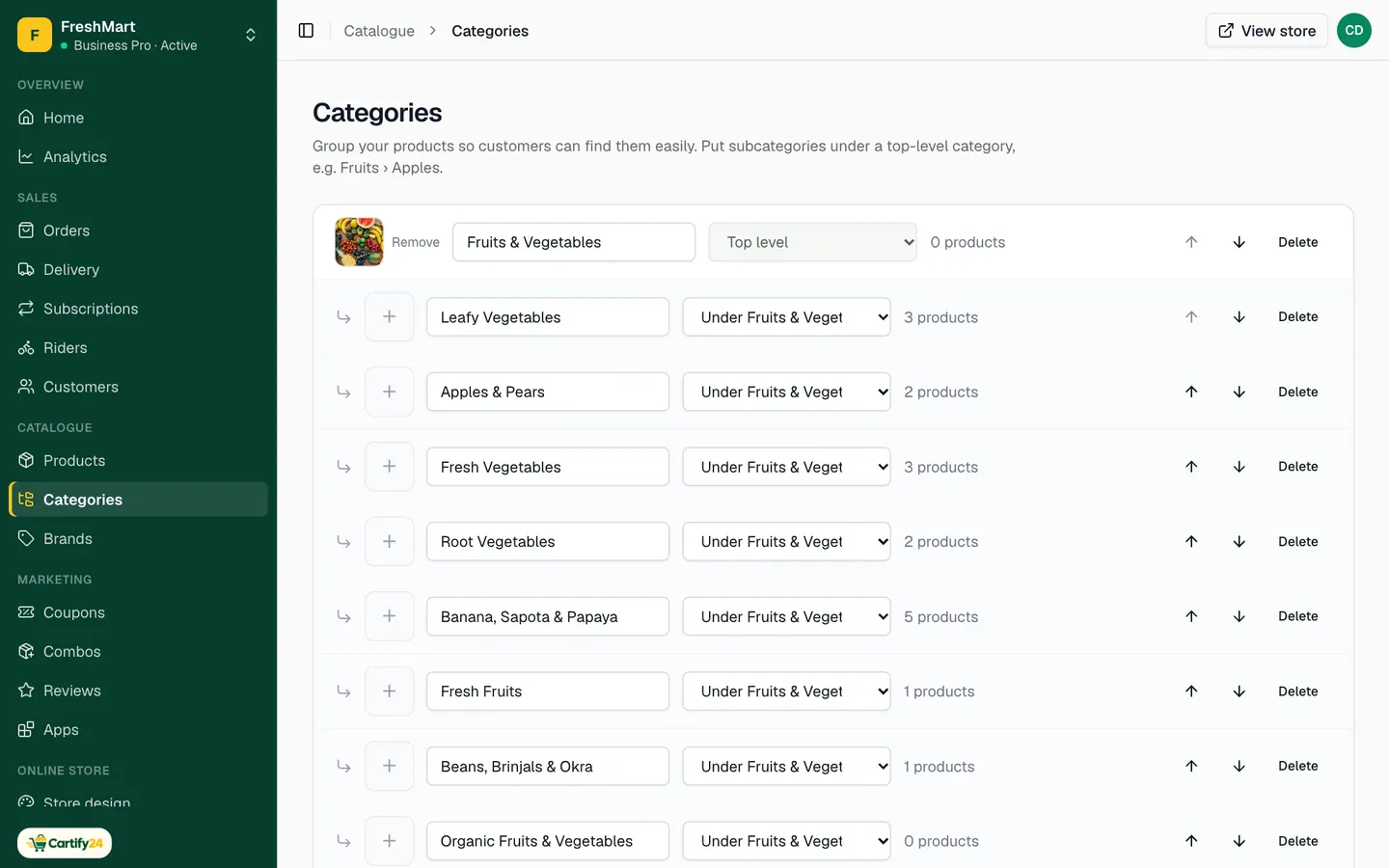
Categories make your store easy to browse: they appear in the Shop by Category menu and as tiles on your home page.
1Categories and subcategories
- 1Open Categories. To start quickly, open Add from the category library, tick the categories you sell and add them in one go, with photos.
- 2Or add your own departments, e.g. Fruits & Vegetables.
- 3Add subcategories and choose the department they go under.
- 4Add a photo to each, and use the arrows to set their order.
- 5Click Description & SEO on a category to add a description (shown above its products) and its title and description in Google.
- 6On each product, choose its category.
Renaming a category keeps its web address, so links and Google results keep working.
2Brands
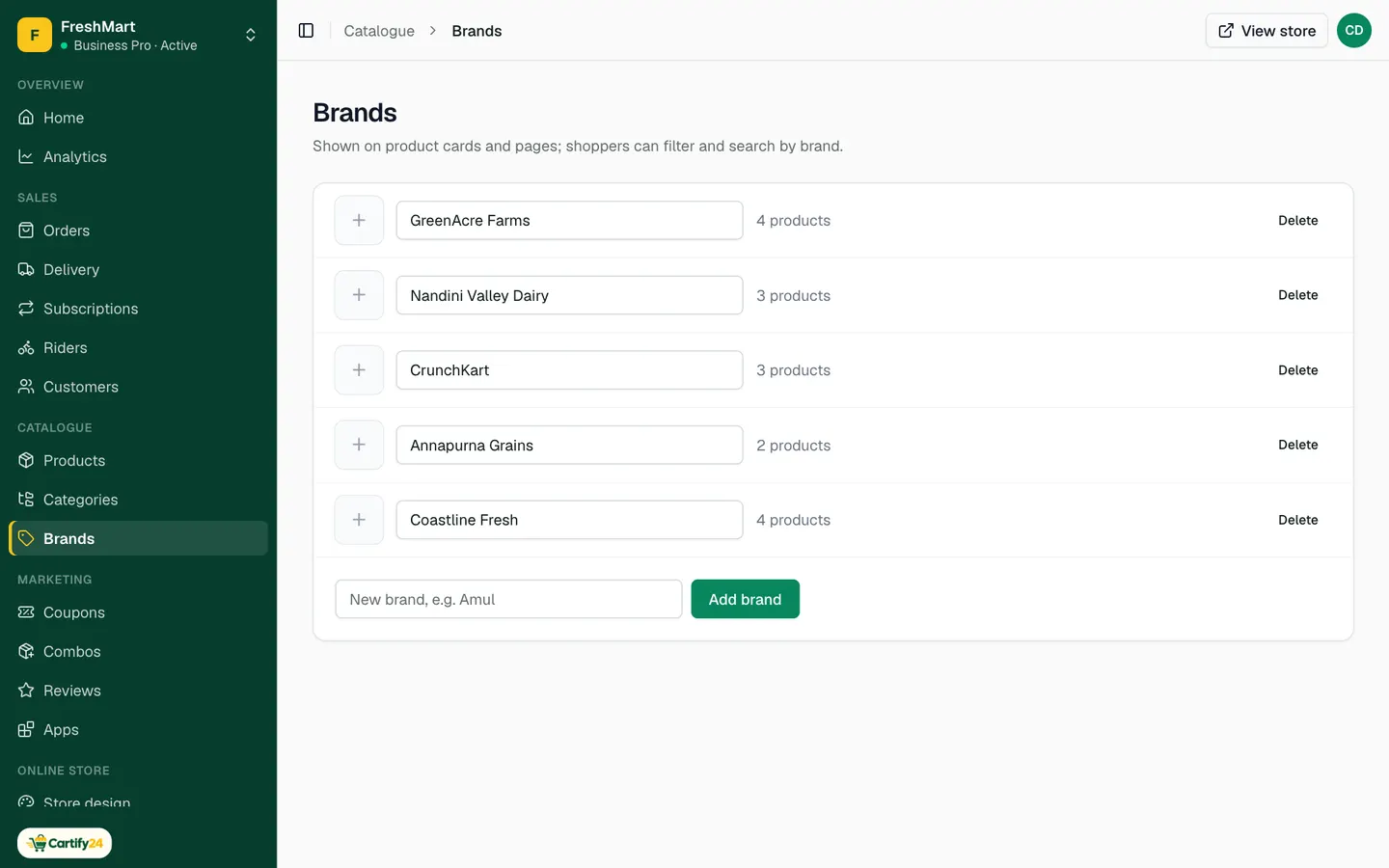
Brands shows each brand with its number of products. Add a brand, then choose it on products; shoppers can filter and search by brand.
Questions
- Can a category have sub-subcategories?
- Categories go one level deep: a department and its subcategories.
Learn more
Ready to try it on your own store?
Start free trial