How to Set Up Your Online Store, Step by Step
Most shops are ready to take orders the same day. This guide takes you from sign-up to sharing your store link; each step links to a detailed guide.
1Create your store
- 1Go to cartify24.com and click Start free trial. Sign up with Google, your email or your mobile number.
- 2Choose what you sell (grocery, fashion, restaurant…). Your store starts with a design and sample products for that kind of shop.
- 3Pick your store name and web address, e.g. yourshop.cartify24.com. Your store is live at once.
2Follow the setup checklist
Your dashboard home has a Set up your store checklist: add your products, upload your logo and brand colours, add your contact details and connect online payments. Each item opens the right page, and it ticks itself off when done.
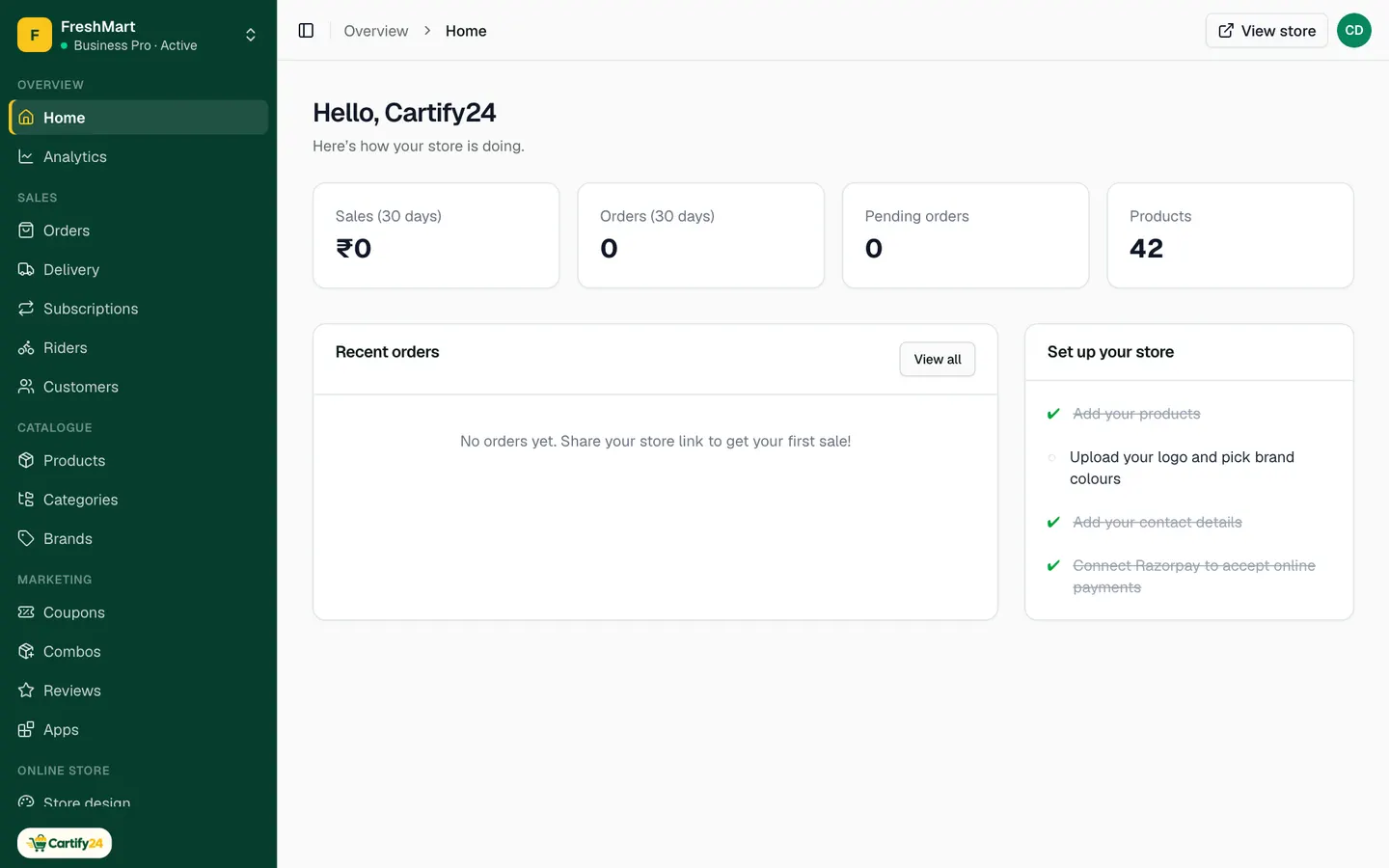
3Add your products
- 1Open Products and click Add product, or edit the sample products to make them yours.
- 2Add photos, a price and a description. Add sizes or weights as variants if you sell them.
- 3When you have many products, use Update prices & stock or Import to work in a sheet.
4Set up delivery and payments
- 1Open Apps and switch on how you deliver: home delivery, time slots, same-day, store pickup or pincode zones.
- 2Switch on Cash on Delivery, and online payments with Razorpay or Cartify24 Payments.
- 3Open each app’s Settings to set fees, slots and timings.
Questions
- Do I need a website or a developer?
- No. Your store is ready at yourshop.cartify24.com the moment you sign up, and you change everything from the dashboard.
- Can I remove the sample products?
- Yes. Products shows a notice for the sample products, with a button to remove them all at once.
Learn more
Ready to try it on your own store?
Start free trial