How to Update Prices and Stock in Bulk
For daily price and stock changes, don’t open each product: change them all in one list, or in Excel.
1In the list
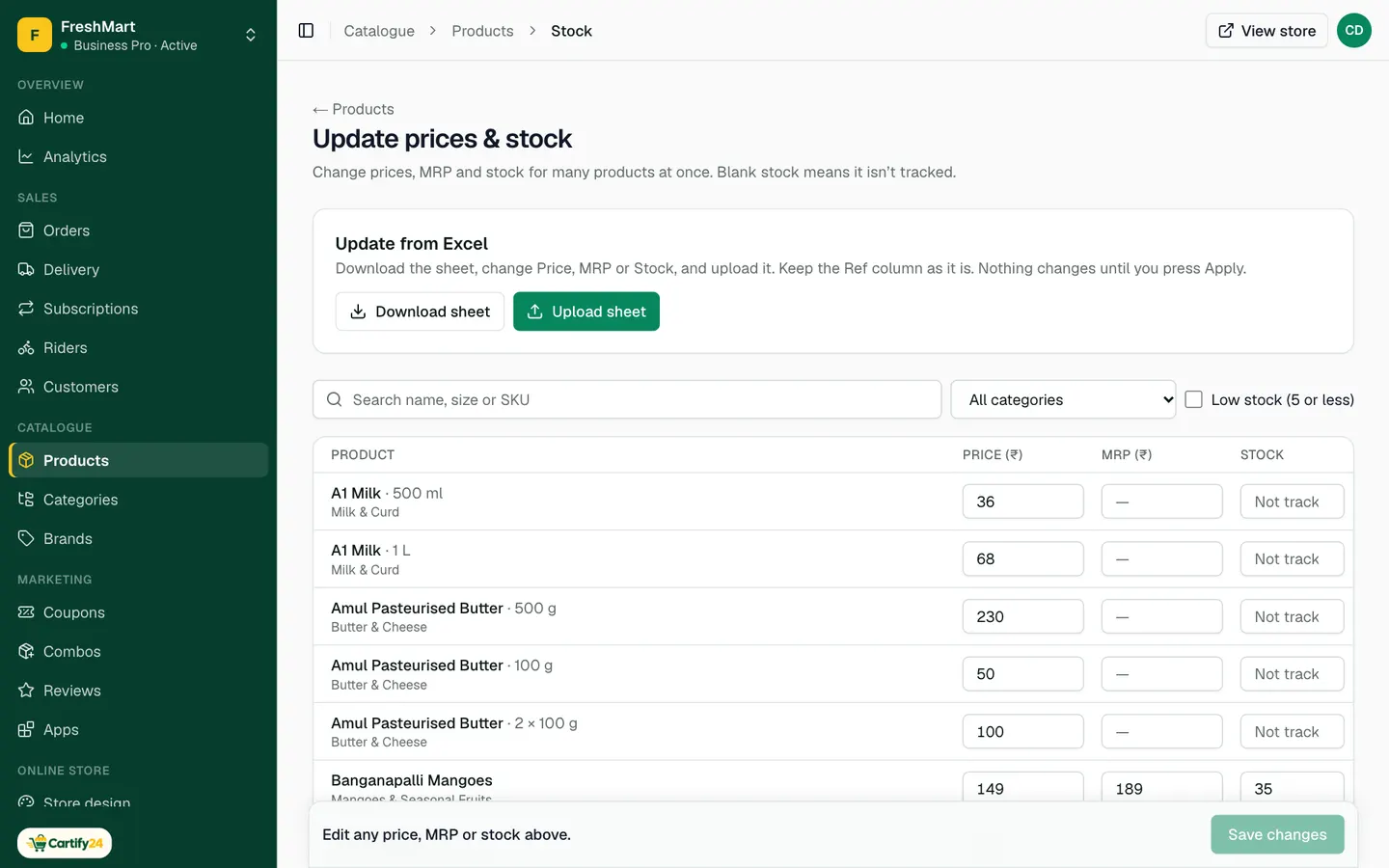
- 1Products → Update prices & stock lists every product and size with its price, MRP and stock.
- 2Search, filter by category, or tick Low stock to see only what’s running out.
- 3Change any price, MRP or stock, then click Save changes.
2In Excel
- 1Click Download sheet.
- 2Change Price, MRP or Stock in Excel. Keep the Ref column as it is.
- 3Click Upload sheet. You see every change, and rows with mistakes, before you apply them.
3Add many products at once
With the Bulk Import app, Products → Import adds or updates hundreds of products from an Excel or CSV sheet, with sizes, images, categories and stock.
Questions
- What does blank stock mean?
- Stock isn’t tracked for that product, so it never shows as sold out.
Learn more
Ready to try it on your own store?
Start free trial