How Product Filters and Attributes Work
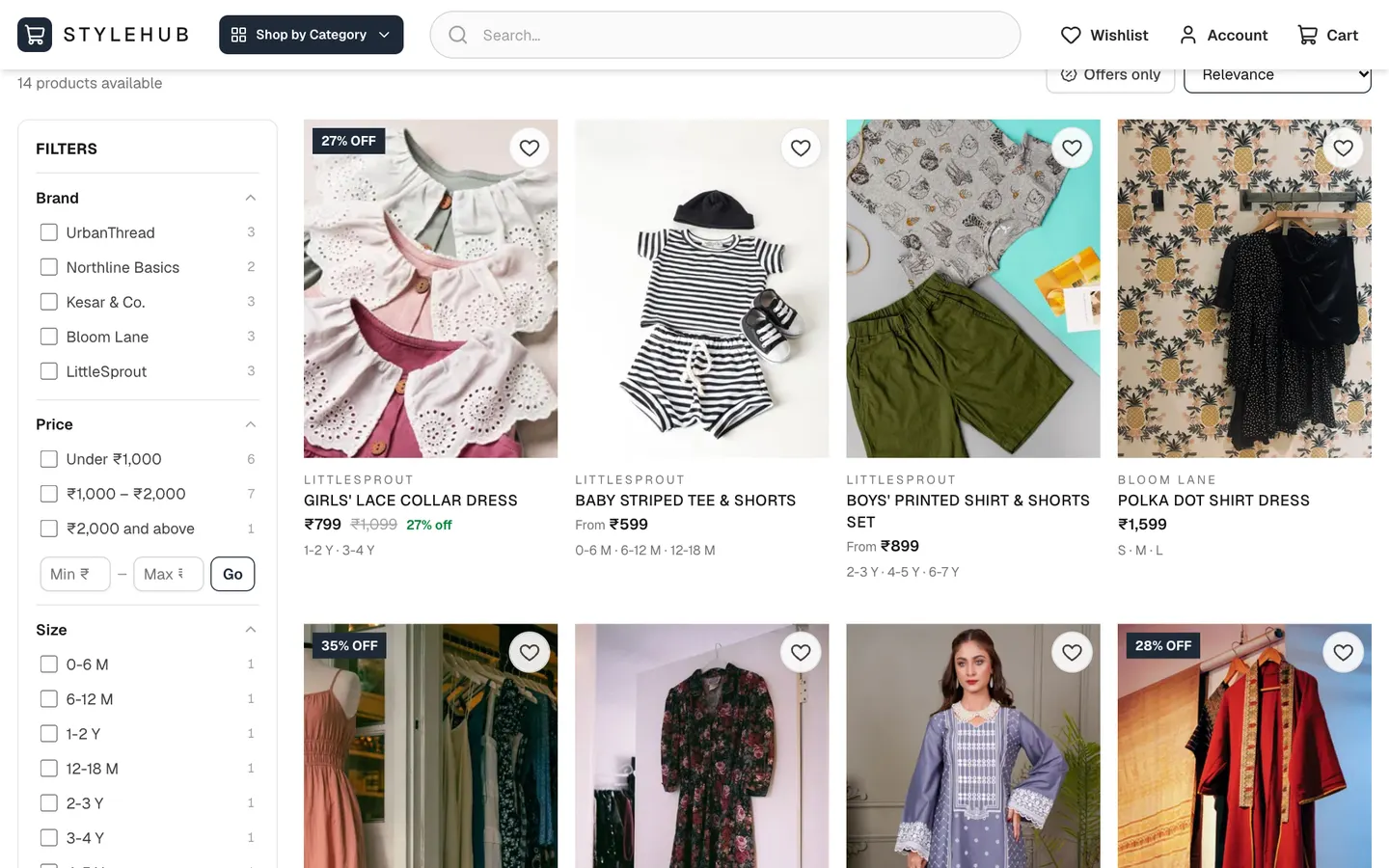
With the Product Filters app, your category, search and all-products pages get a filter panel on the left. Shoppers narrow the list by brand, price, availability, rating and attributes such as size, colour or RAM.
1What shoppers see
The panel lists Brand, Price, “In stock only”, Rating and your attributes, each value with the number of products that have it. Price ranges are worked out from your prices, and shoppers can enter their own minimum and maximum. Rating appears once your products have reviews, and Brand once products have brands.
2Where attributes come from
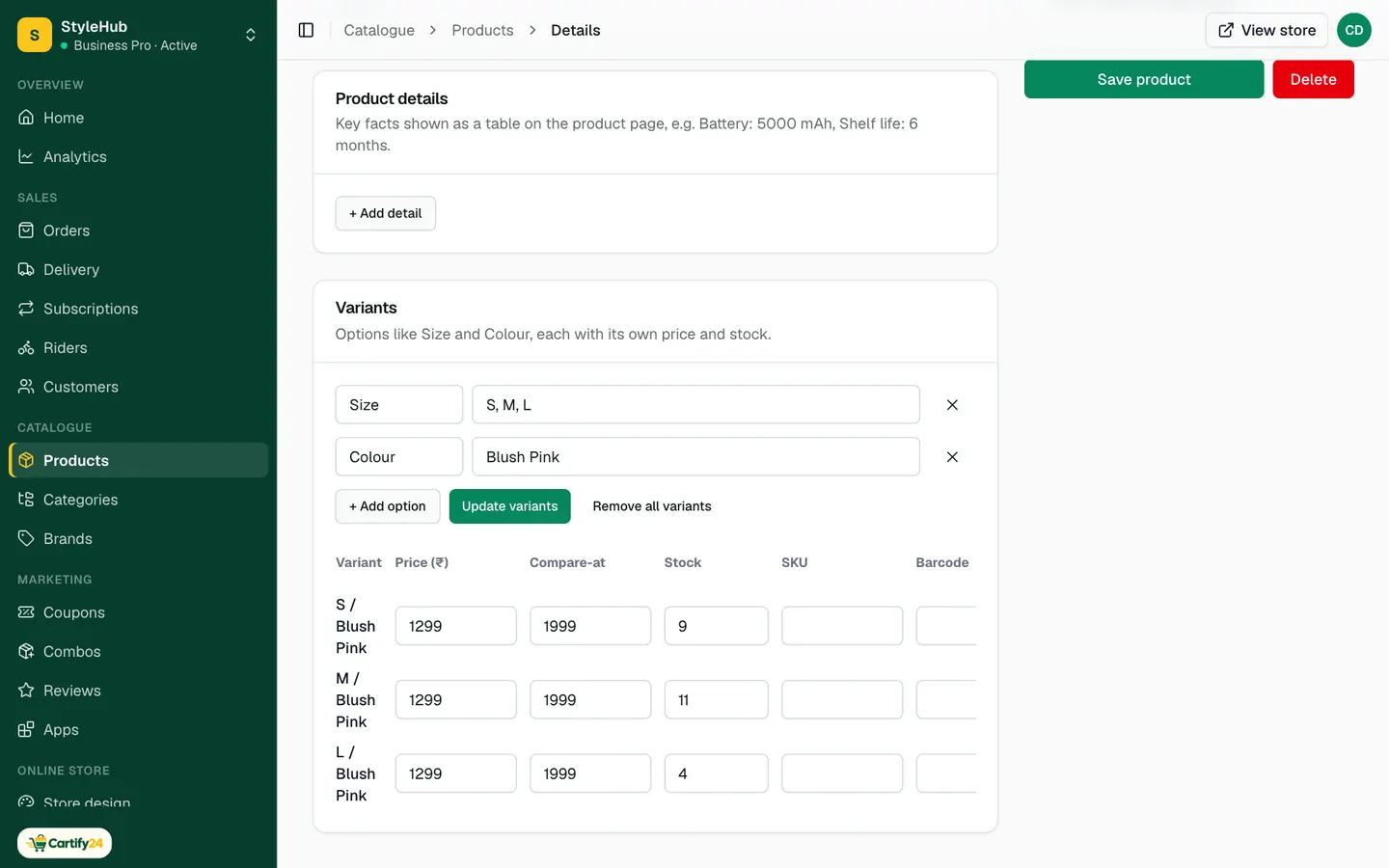
Attributes are read from your products, so there’s nothing separate to set up. They come from two places on the product form: the options under Variants (e.g. Size: S, M, L and Colour: Blush Pink), using the values of the sizes that are switched on, and the facts under Product details (e.g. RAM: 8 GB, Material: Cotton).
3Which attributes show
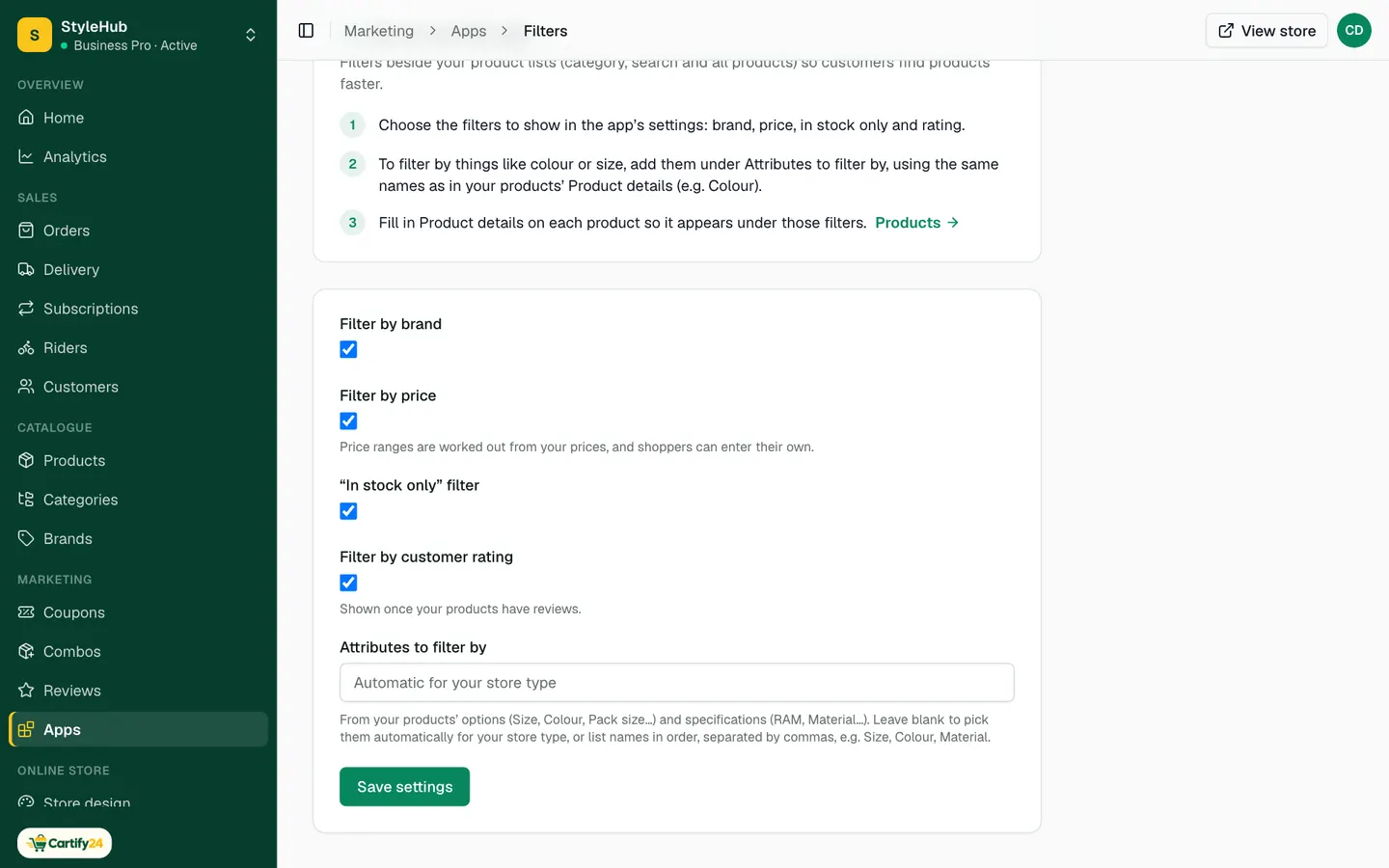
- 1Leave “Attributes to filter by” blank and Cartify24 picks up to 6 for you: the usual ones for your kind of store first (Size, Colour, Material and Fit for fashion; Storage, RAM and Screen size for electronics; Pack size and Weight for grocery), then the attributes most of your products have.
- 2An attribute only shows when your products have at least 2 different values for it; a filter with one choice wouldn’t help.
- 3To choose them yourself, list the names in order in the app’s settings, separated by commas, e.g. Size, Colour, Material. Only those show, in that order.
- 4Names are matched without caring about capitals or spaces, and Color and Colour count as the same.
4How filtering works
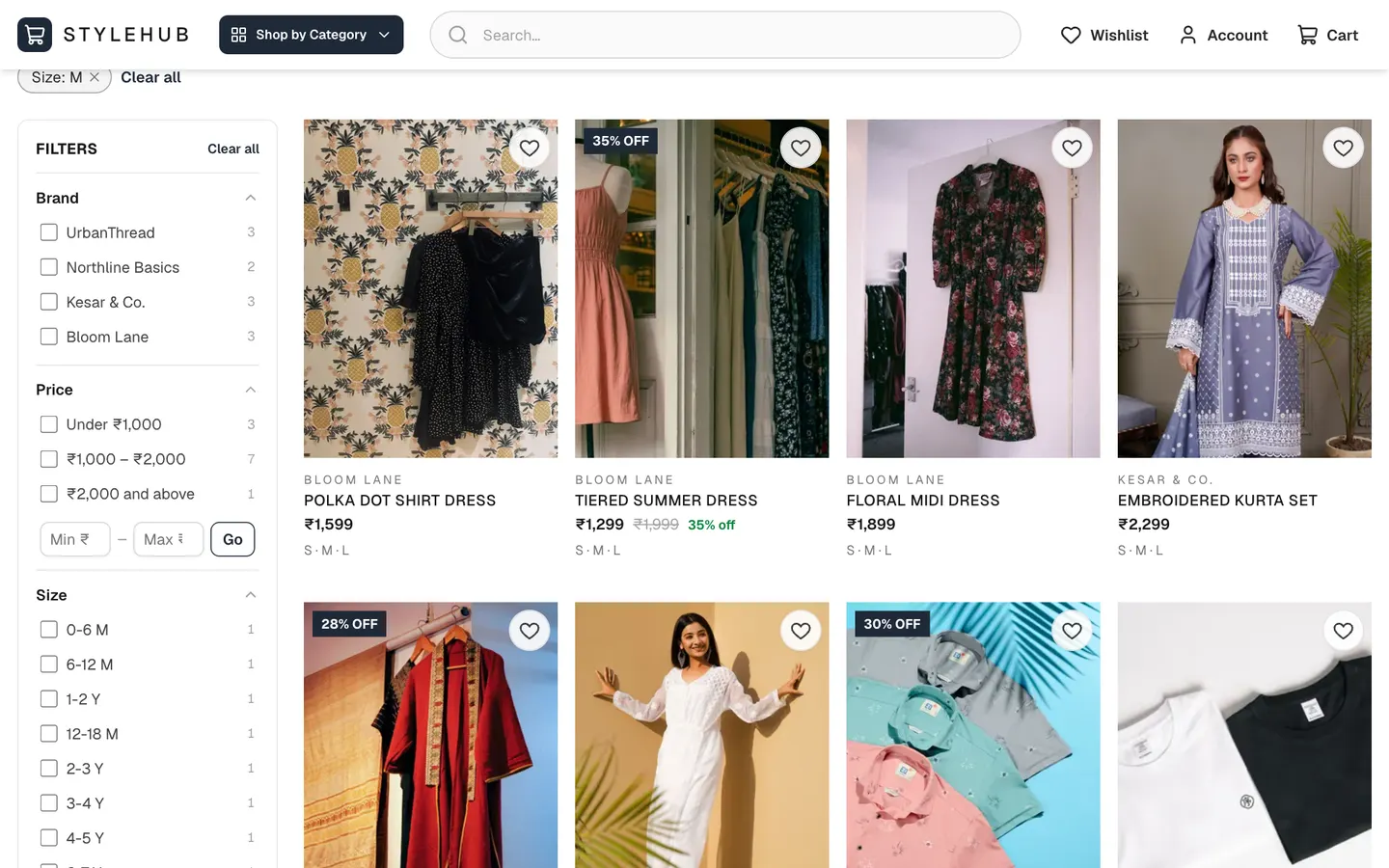
- 1Within one filter, ticking several values shows products with any of them: Size M or L.
- 2Across filters, products must match all of them: Size M and Brand Bloom Lane and under ₹2,000.
- 3The counts update as filters are picked, chosen values show as chips above the list, and Clear all removes every filter.
- 4The filters are in the page address, so a filtered list can be shared or bookmarked. Sorting and “Offers only” work together with them.
5On phones
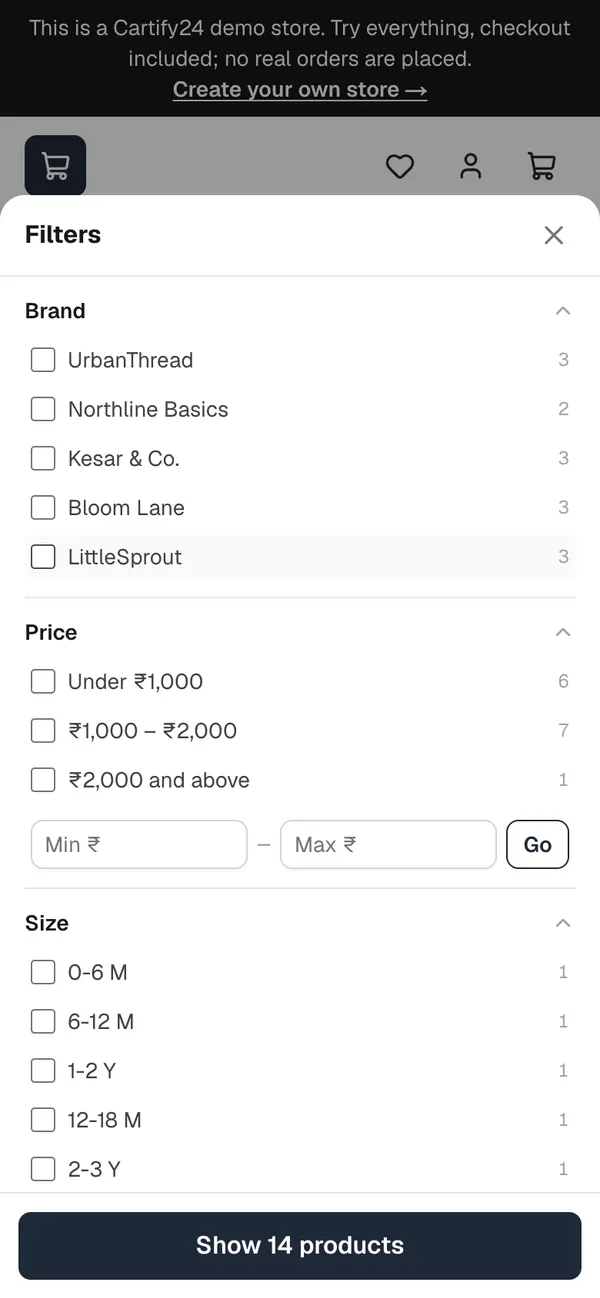
On a phone, a Filters button opens the same panel full screen; Show products applies the filters.
6Keep your values tidy
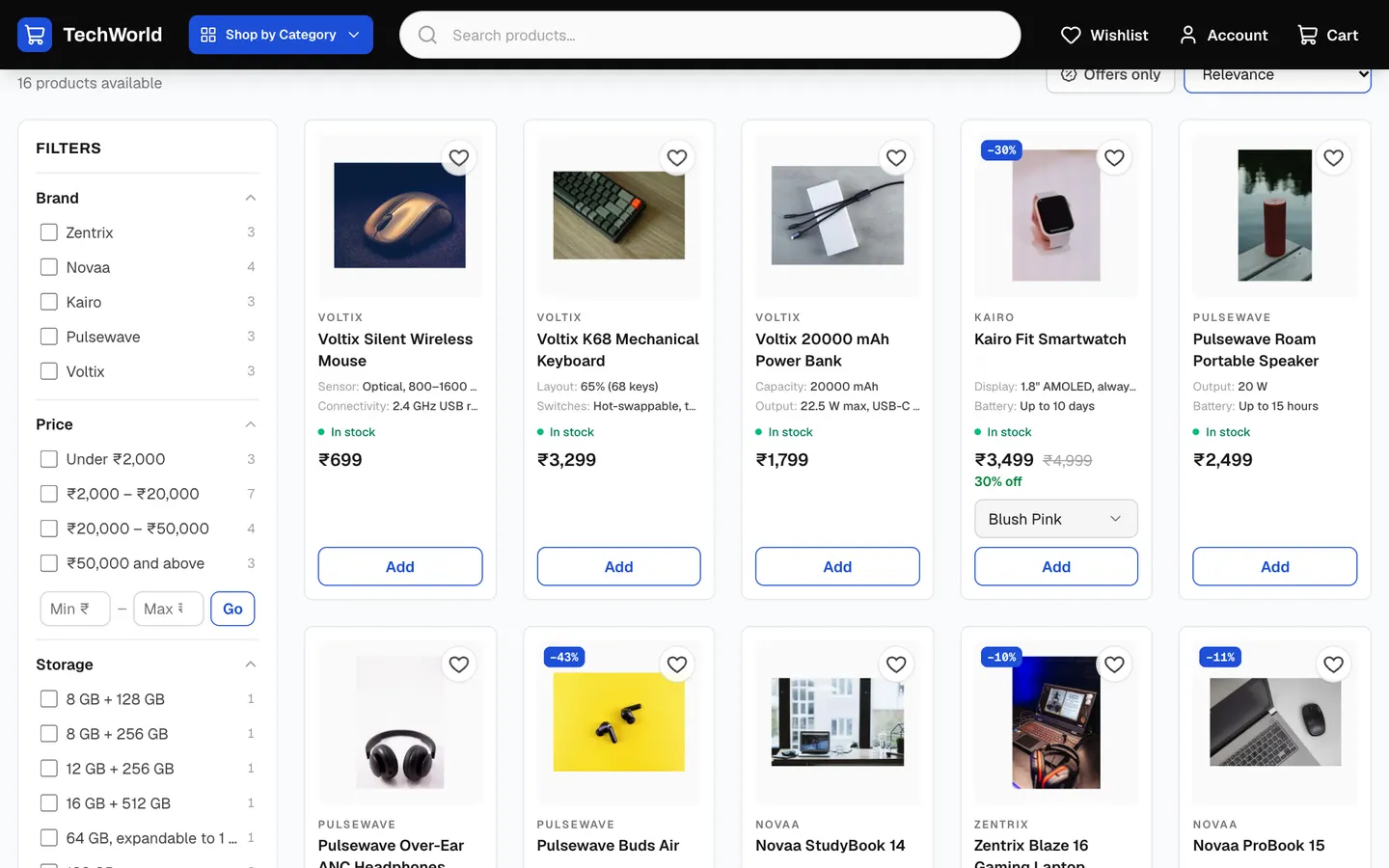
Each different value is its own checkbox, so write values the same way on every product: always “8 GB”, not “8GB” on one and “8 GB RAM” on another. In this electronics store, Storage is written in several ways, so the same storage appears under different values.
Sizes, weights and ages are sorted in a sensible order (S before M, 500 g before 1 kg), not alphabetically.
Questions
- Do I need to create attributes somewhere?
- No. They come from your products’ options and product details; switch on Product Filters and they appear.
- Why doesn’t an attribute show?
- It needs at least 2 different values across your products. If you listed attributes in the app’s settings, only those names show, so check the spelling there.
- Which pages have filters?
- Category pages, search results and the all-products page.
Learn more
Ready to try it on your own store?
Start free trial