How to Add Products, Photos and Sizes
Products is your catalogue. Each product has photos, a price, stock and, if you like, variants such as sizes or weights.
1Your products
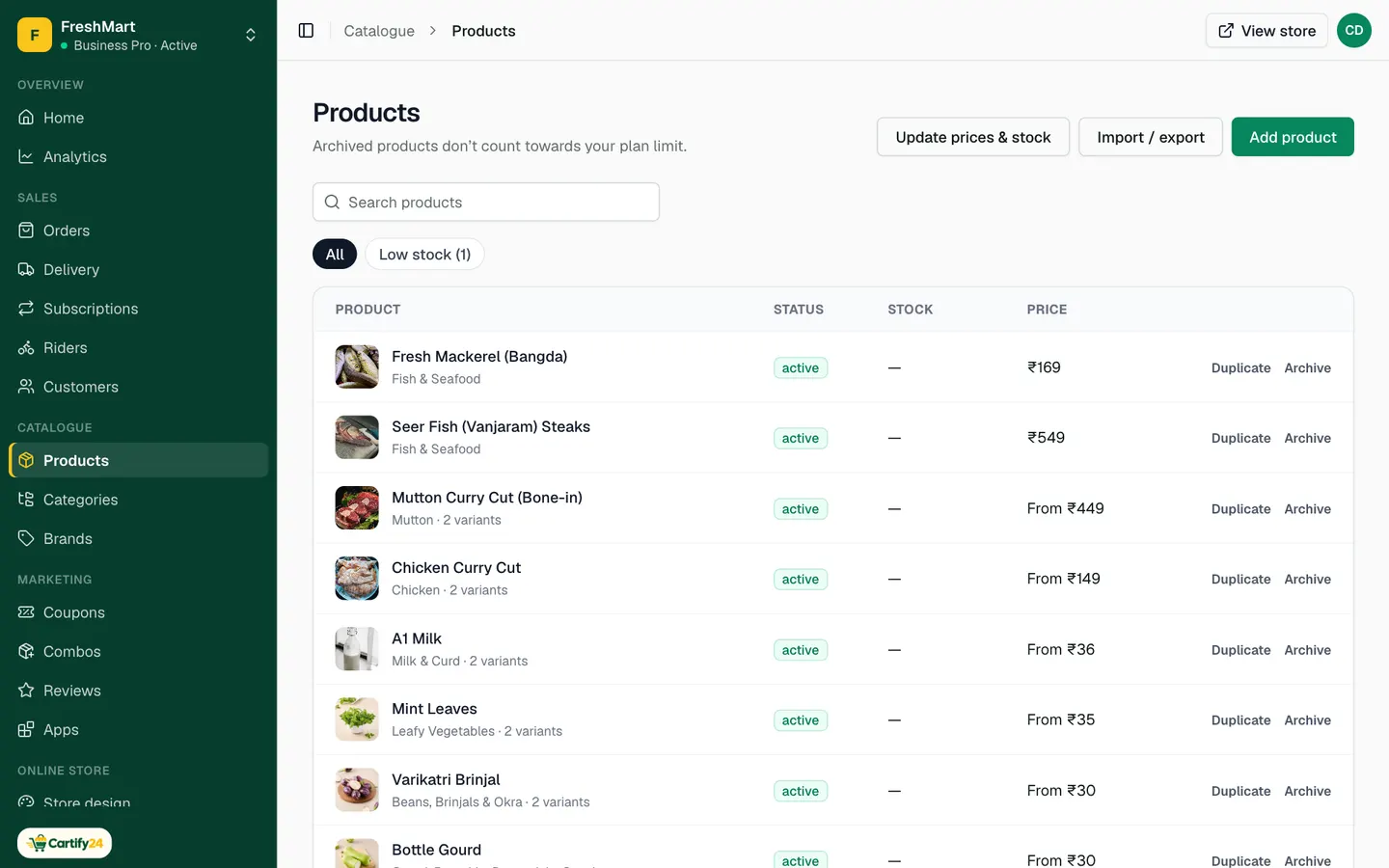
Products lists everything with its status, stock and price. Use the search, the Low stock filter, and Duplicate or Archive on each row. Archived products don’t count towards your plan’s limit.
2Add a product
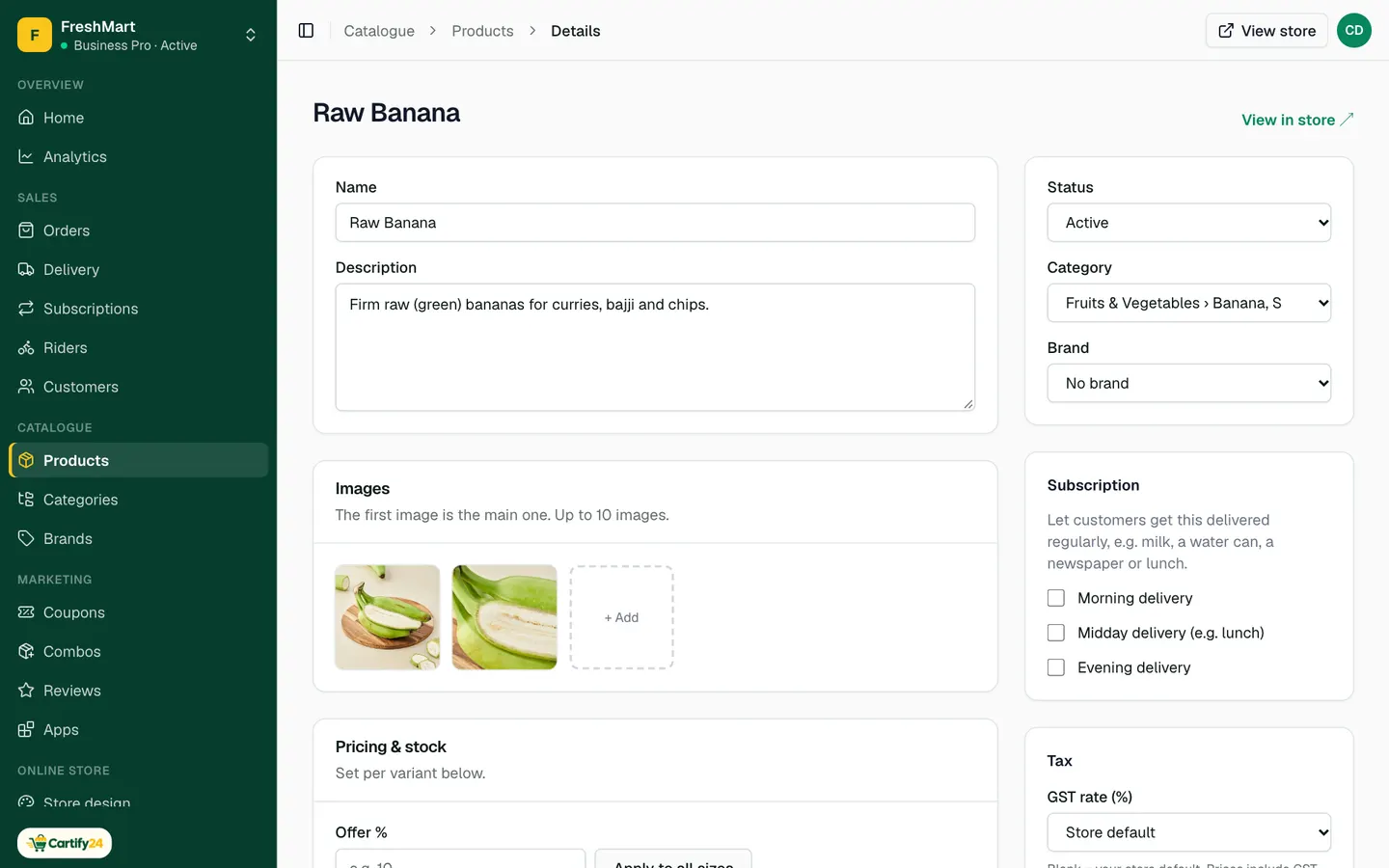
- 1Click Add product. Start typing the name: ready products from the product library appear. Pick one to fill in the description, pack size, Google title and description, a photo and the category, or keep typing your own.
- 2Add up to 10 photos; crop each one before it uploads, or click Choose from library. The first photo is the main one.
- 3Choose the status (draft or active), the category and the brand.
- 4Enter the price, the MRP (shown struck through) and the stock. Leave stock blank if you don’t track it.
- 5Save. The product appears in your store when it’s active.
3Sizes, weights and colours
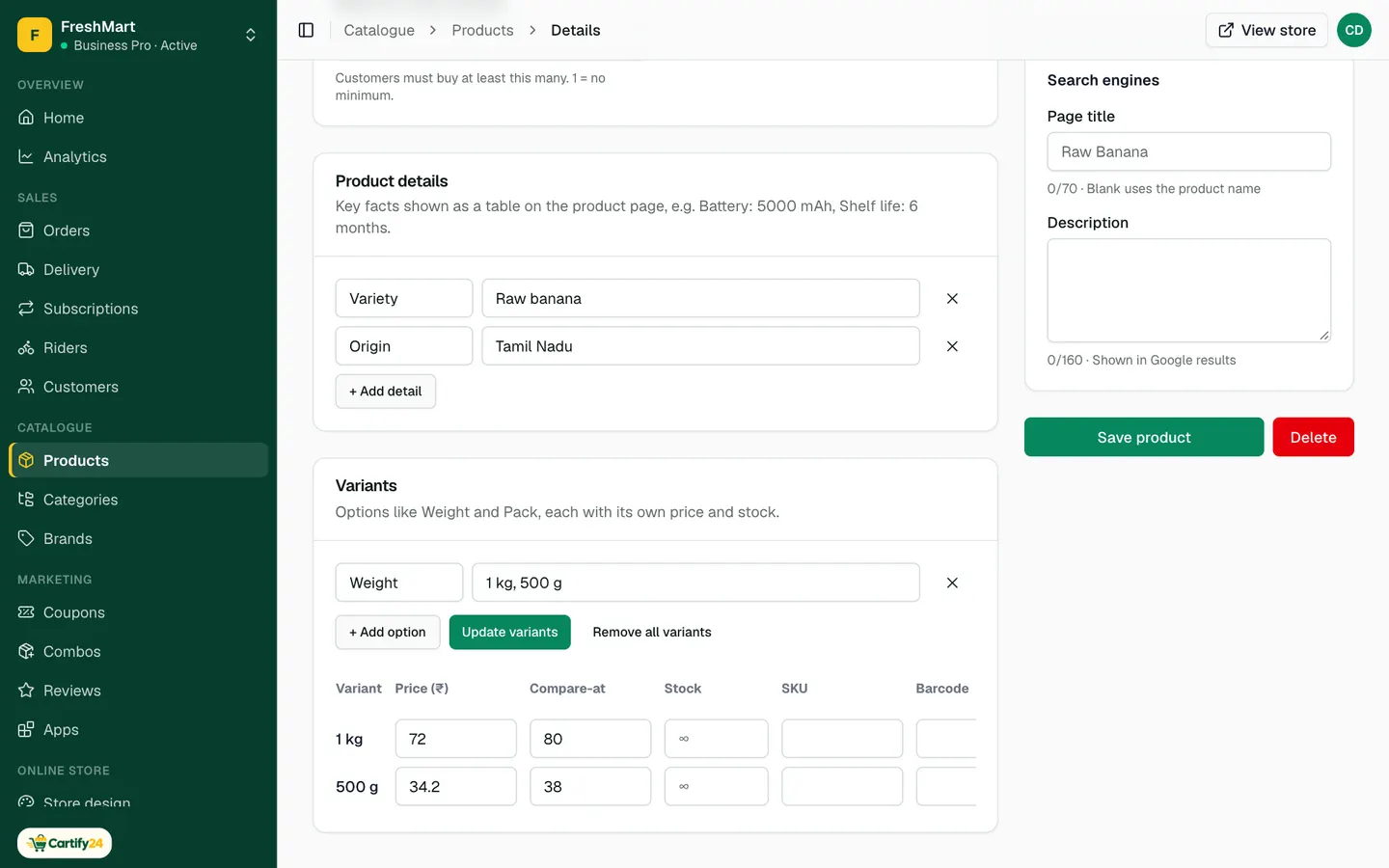
Under Variants, add an option such as Weight with its values (1 kg, 500 g), then Update variants. Each variant gets its own price, compare-at price, stock, SKU and barcode. Product details adds a facts table to the product page.
4Tax, SEO and offers
- 1Tax: the GST rate (or your store default) and the HSN code, for GST invoices.
- 2Search engines: a page title and description for Google; blank uses the product name.
- 3Offer %: apply a discount percentage to every price of the product in one go.
Questions
- How many products can I add?
- It depends on your plan; Plan & billing shows how many you’ve used. Archived products don’t count.
- Can I copy a similar product?
- Yes. Use Duplicate on the product’s row, then change what’s different.
Learn more
Ready to try it on your own store?
Start free trial