How to Give Riders Their Own Delivery List
Each rider gets a private link with today’s orders and subscription deliveries in their areas. They don’t need an account.
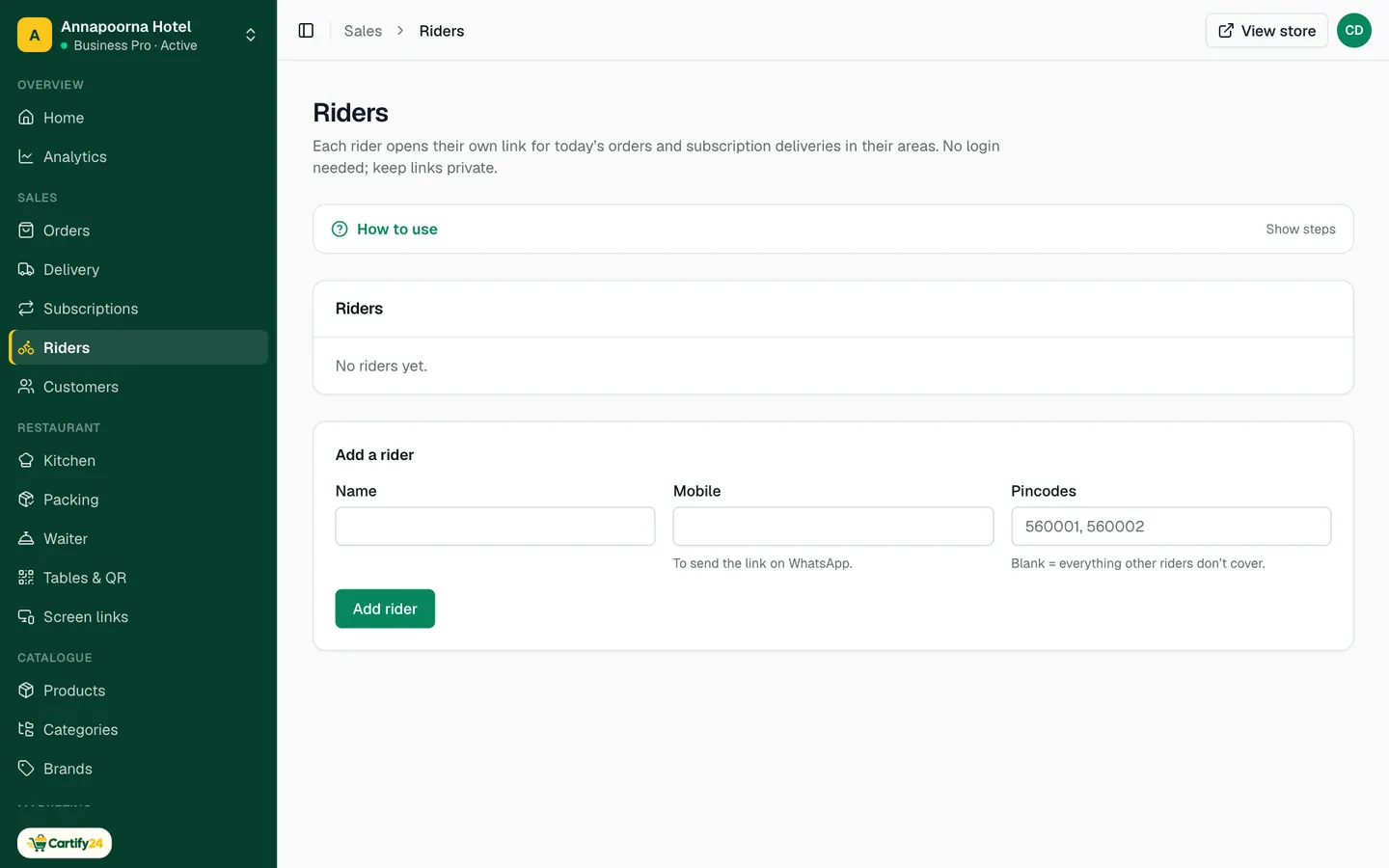
1Add your riders
- 1Switch on Delivery Riders in Apps, then open Riders.
- 2Add each rider with their name, mobile and the pincodes they cover, in the order they ride them (blank covers everything other riders don’t).
- 3Send each rider their link on WhatsApp.
2Stops by area, with directions
A rider’s list groups today’s stops by pincode, in the order of their pincodes, with the same street together. Directions opens Google Maps through the stops still to do in that area, ten at a time, starting from where the rider is.
3A photo at the door
- 1In Apps → Delivery Riders, choose Riders can add a photo, Riders must add a photo before marking delivered, or No photos.
- 2The rider taps Add photo; the phone’s camera opens and the photo is uploaded, shrunk to save data.
- 3See it under Photo at delivery on the order, or Photo on the subscription delivery sheet. Photos are private to your store.
4Cash from riders
Riders mark orders delivered and enter the cash they collect. Confirm it under Cash to confirm on the Riders page; that records the payment on the order, the customer’s wallet or their bill.
Questions
- What if a rider’s link is shared by mistake?
- Make a new link for that rider; the old one stops working.
- Who can see delivery photos?
- Only your store team, in the dashboard. Each photo opens through a private link that expires after an hour.
Learn more
Ready to try it on your own store?
Start free trial