How to Set Up Delivery Slots, Zones and Pickup
You choose how customers get their orders. Each way is an app you switch on in Apps; customers then choose between them at checkout.
1Choose your delivery options
- 1Open Apps and switch on the ones you offer: Standard Delivery, Slot-based Delivery, Same-Day Delivery and Store Pickup.
- 2Open each app’s Settings to set the fee, free delivery above an amount, and timings.
2Delivery time slots
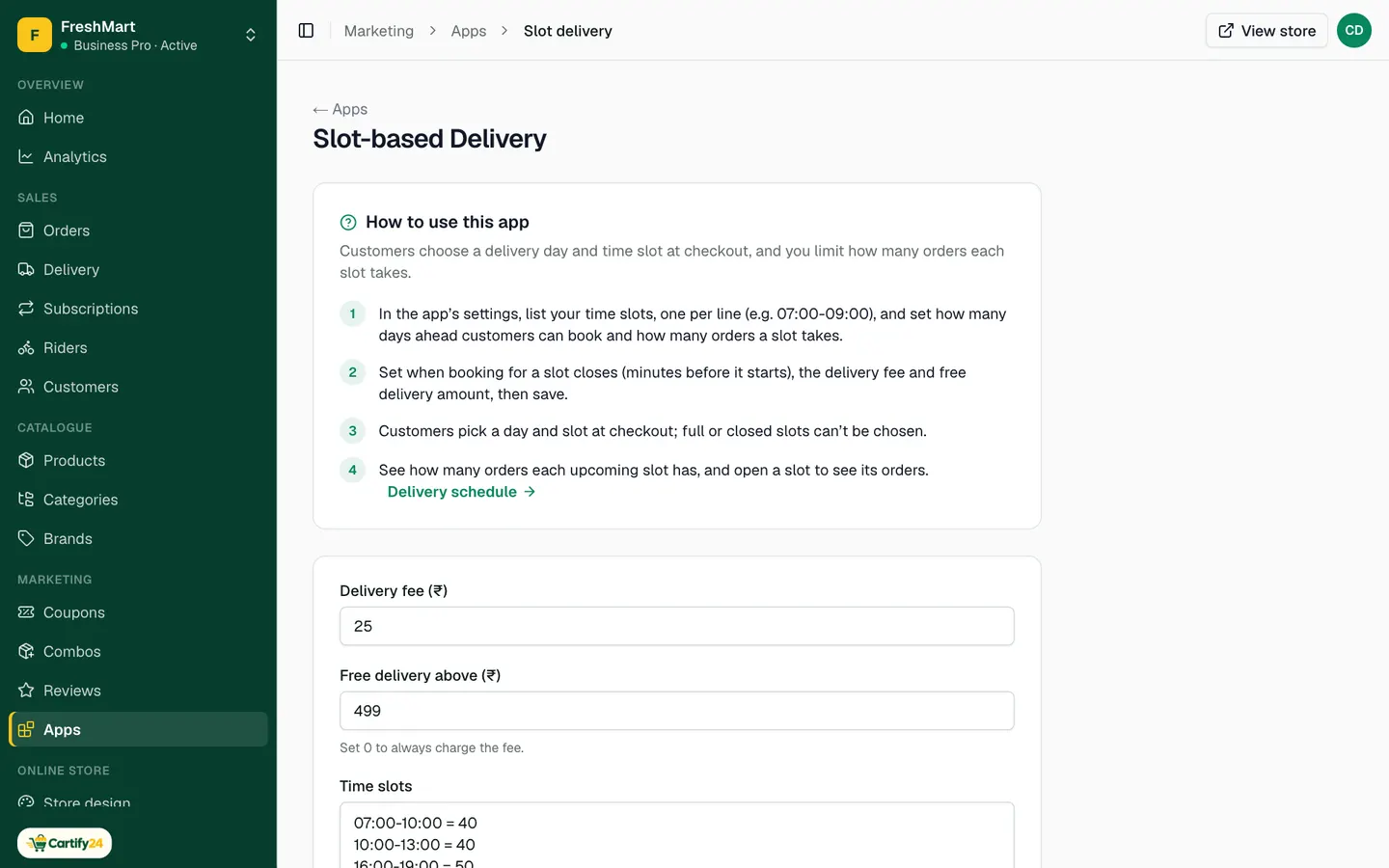
With Slot-based Delivery, list your slots one per line (e.g. 07:00-10:00), how many days ahead customers can book, how many orders a slot takes, and when booking closes before it starts.
3Deliver by pincode
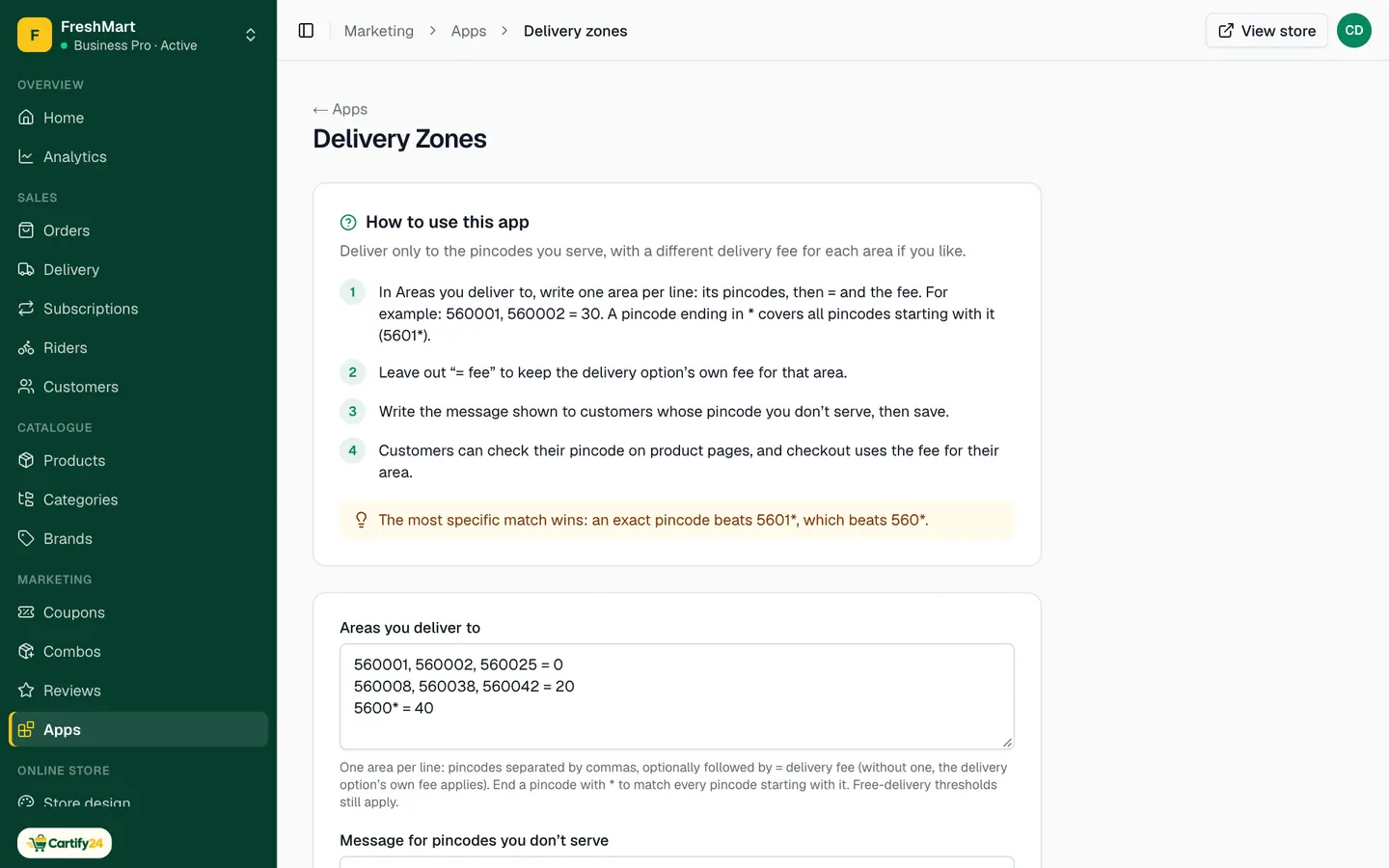
Delivery Zones limits delivery to the pincodes you serve, with a fee for each area. Write one area per line, e.g. 560001, 560002 = 30. A pincode ending in * covers every pincode starting with it.
4The delivery schedule
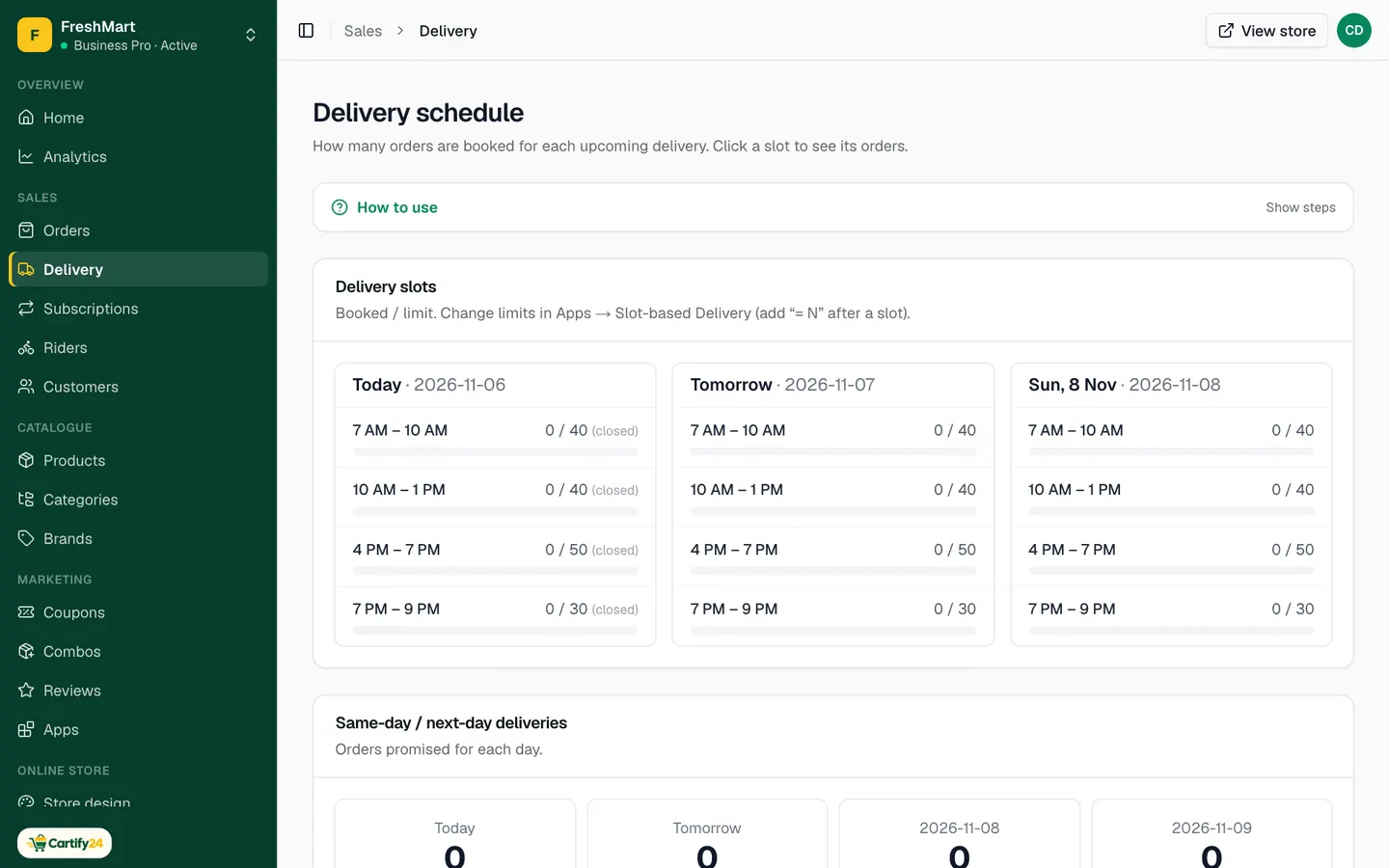
Delivery (in the Sales menu) shows how many orders are booked for each upcoming slot and day. Click a slot to see its orders.
Questions
- Can I stop taking orders for a slot that’s full?
- Yes. Each slot takes up to the number of orders you set, and full or closed slots can’t be chosen at checkout.
- Can customers pick up from my shop?
- Yes. Switch on Store Pickup and add your address; you can also offer pickup times.
Learn more
Ready to try it on your own store?
Start free trial