How to Add Features to Your Store with Apps
Apps add features to your store. Switch on what you need, when you need it; which apps you can use depends on your plan.
1Find an app
Open Apps. Apps are grouped (Delivery, Payments, Marketing, Operations); search them, or show only installed or not-installed ones. An app your plan doesn’t include shows the plan that has it.
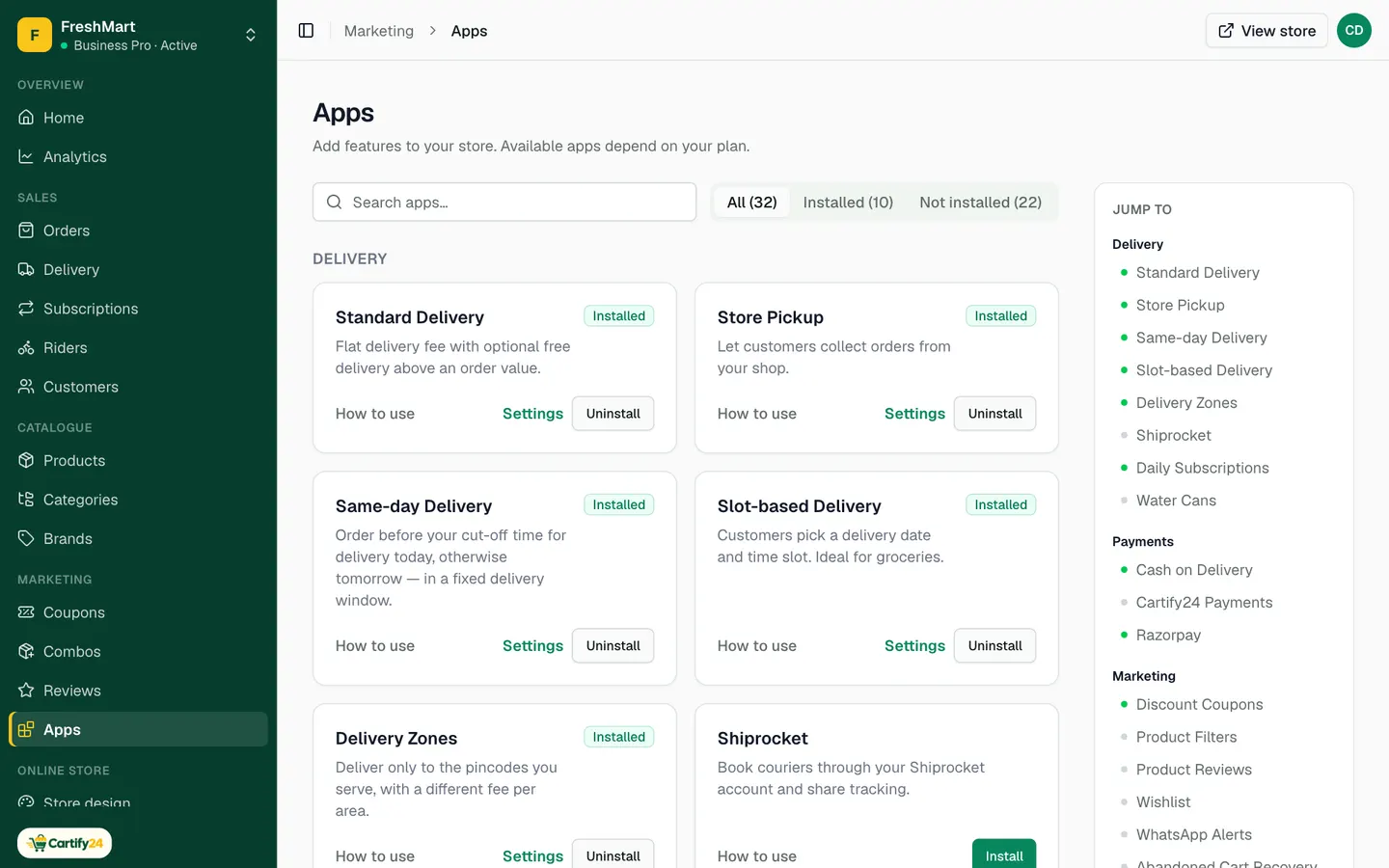
2Switch it on and set it up
- 1Click Install on the app.
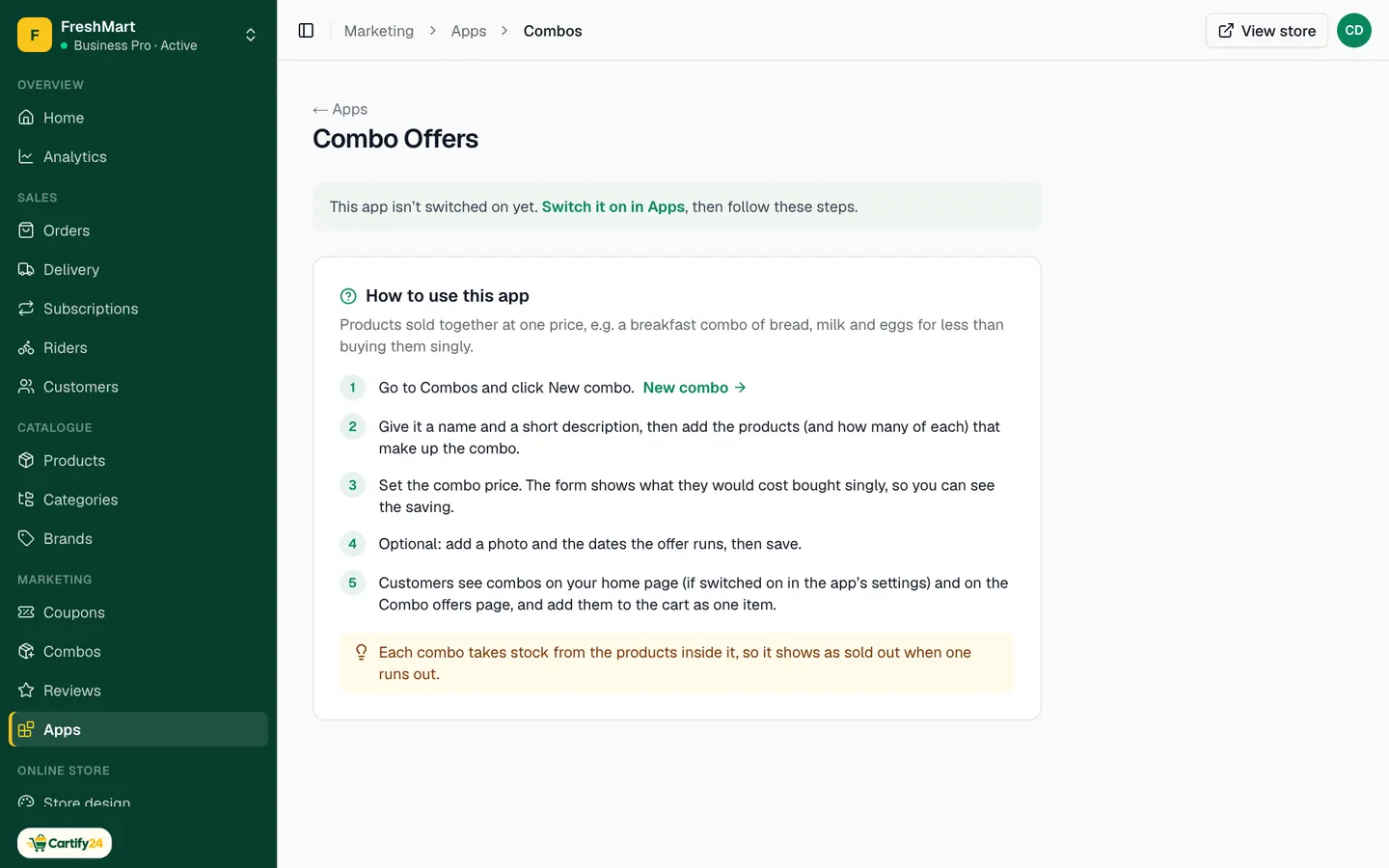
- 2Click How to use (or Settings) to open the app’s page.
- 3Follow the numbered steps at the top; each links to the page where it’s done.
3Switching an app off
Click Uninstall to switch an app off; its settings are kept for next time. If you move to a plan without an app, it’s switched off, and you’re told before you pay.
Questions
- Do apps cost extra?
- No. Apps are included in your plan; a higher plan includes more apps.
Ready to try it on your own store?
Start free trial